![Logo-GroupeiCible_RGB_TUXEDO_logo-h_blanc.png]](https://faq.tuxedosolution.com/hs-fs/hubfs/Logo-GroupeiCible_RGB_TUXEDO_logo-h_blanc.png?height=40&name=Logo-GroupeiCible_RGB_TUXEDO_logo-h_blanc.png)
Watch our short tutorial video or follow the steps below (available in French only) !
Please note: This process is the same whether you use Givex gift cards or TUXEDO’s gift card solution. We no longer use Givex as of July 2026.
Start by going to the Ticket Sales page.
- Select the Gift Card tab.
- Click New Gift Card. The minimum can be modified by contacting soutien@icible.ca.
- Enter the amount requested by the customer. Please note that gift cards cannot be issued for less than the minimum.
- Click Save.
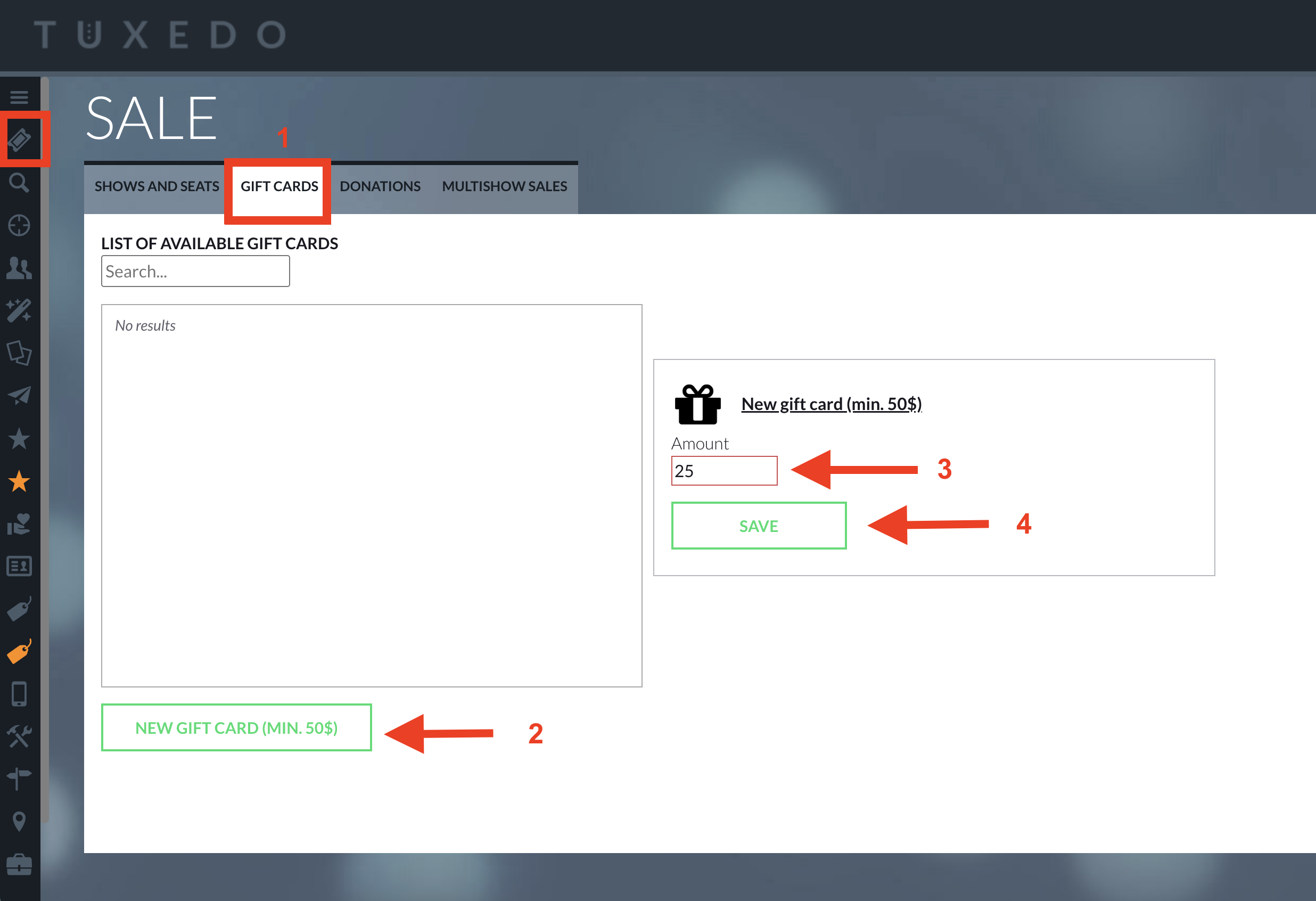
If you use physical gift cards (e.g., plastic cards), select a card number from the list before entering the amount and proceeding with the next steps.
Then, follow the usual sales process by assigning the gift card to the appropriate customer and adding it to the cart.
Here is how the gift card appears in the cart before payment:
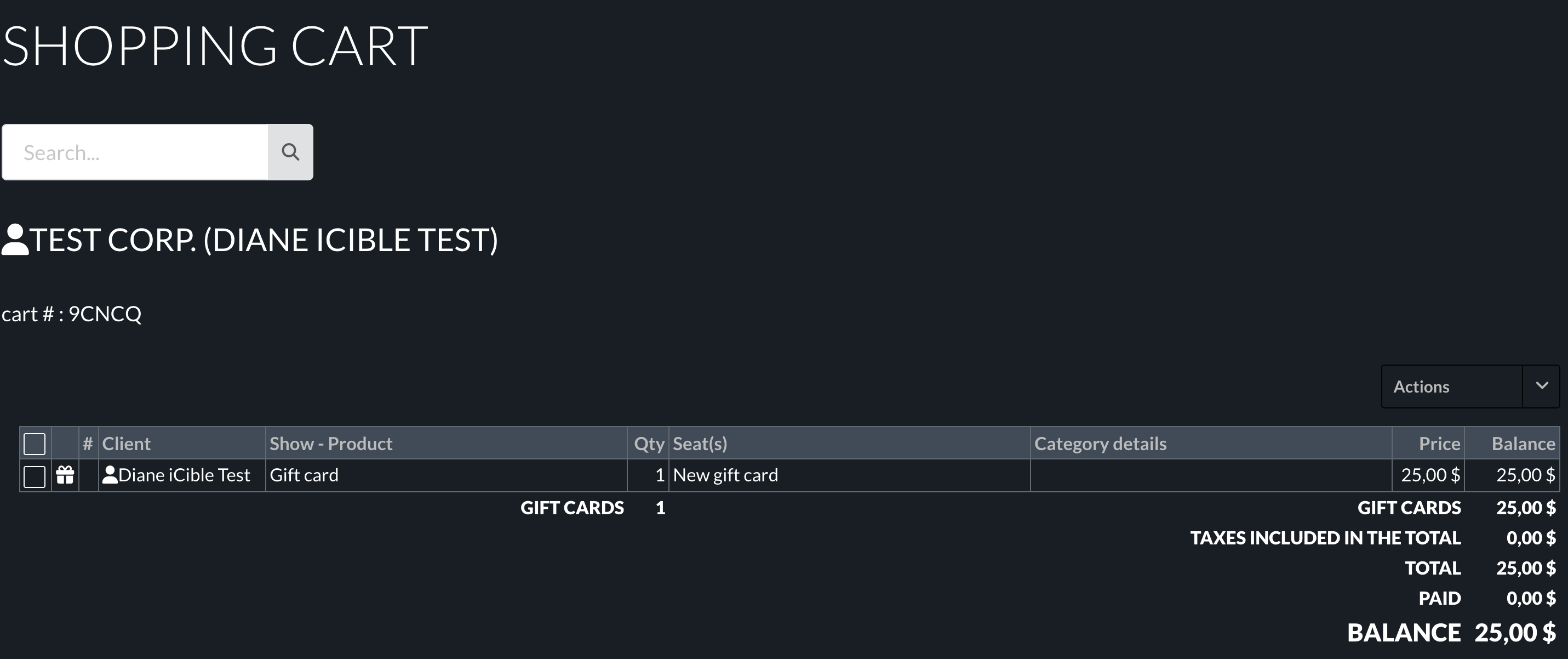
Process the customer’s payment as usual using their preferred payment method. To learn how to process a cart payment, click here.
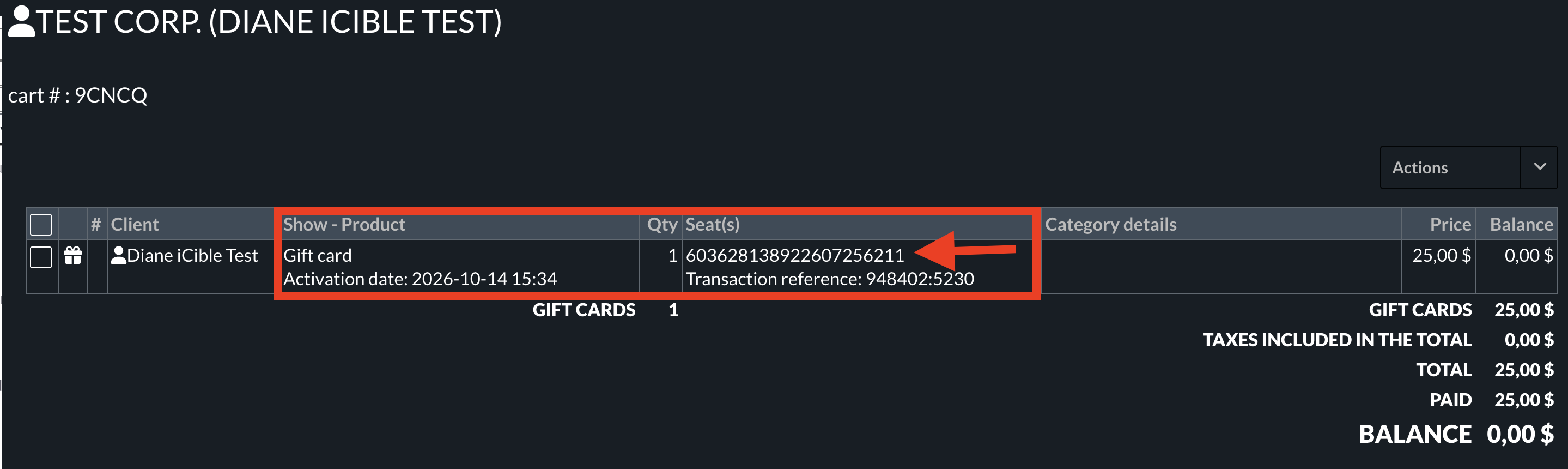
Once the reservation has been paid, the cart will display when the gift card was activated, along with its activation number, as shown below.
The activation number displayed in the Seat(s) column is the number that will be used when the gift card is redeemed.
[
Once payment is complete, you can print the gift card on a ticket, send it by email, or download it, depending on your available options and the customer’s preference.
BEST PRACTICE
When selling a gift card in person at the box office, you can give the customer something more visually appealing than a printed ticket, which has limited information.
When printing the gift card, select the option to download the electronic ticket. You can then print the PDF using your office printer and give it to the customer.
ADDITIONAL INFORMATION
To learn more about selling and redeeming gift cards and accessing gift card reports, watch this webinar (available in French only).
Don’t have the electronic gift card module yet? Contact us at soutien@icible.ca to learn more. Setup and configuration of the module are free!